Design Hybrid Learning for Your Least Tech-Savvy Participant
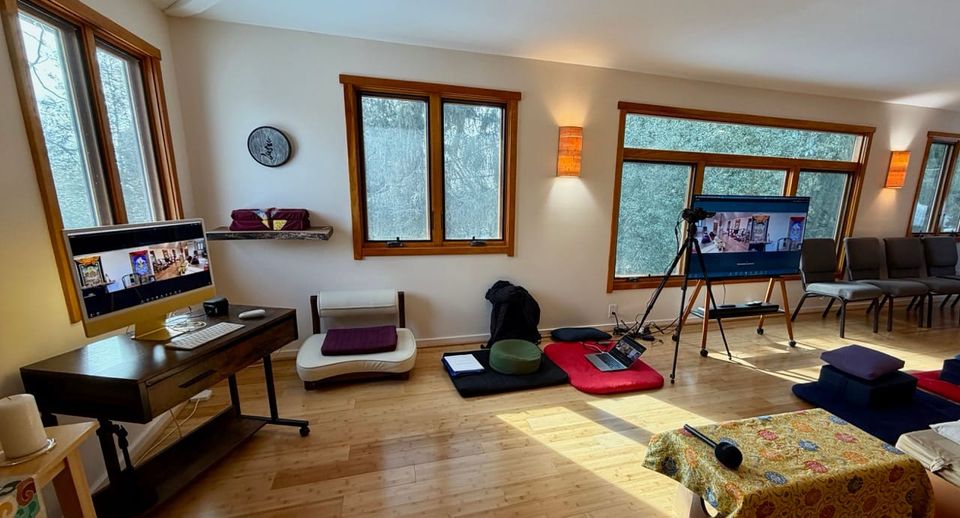
I'm helping run a 16-month Buddhist cohort studying Chogyam Trungpa Rinpoche's teachings. From the beginning we knew we'd have about 20 people joining from all over - different parts of the US, Hawaii, Japan. Some can attend in person at our shrine room, others need to join remotely. Some watch recordings later if they can't make a session.
I've been to many hybrid meetings where the remote participants feel like secondary participants - tiny faces in a grid, struggling to hear, unable to participate naturally. I didn't want that for our cohort.
I'm not the teacher here...I'm took on the role of choosing and setting up the technology for this. So here's what I learned about making hybrid contemplative practice actually work for everyone.
The Challenge
This is a 16-month commitment. I do not want to be "changing horses midstream" - we need to pick the right tools once and have them work reliably for the entire cohort.
The specific challenges I was trying to solve:
Different tech skill levels - This was huge. We have a carpenter, nurses, hospice workers, people in manufacturing. After talking with the peopel in the group I learned they are not comfortable with computers and logging in and out of things. Even logging into different accounts in Zoom or Google is confusing. I'm not trying to denigrate their abilities - I do this stuff all day, so it's easy for me. But I don't know how to fix a wound like the nurses do.
It needs to be simple to share things - If a teacher wants to share a PDF with the group, if they found a video, it needs to be really simple to use, look really good right away, and be totally reliable and not lose anything.
It needs to feel beautiful and inviting - We needed a home landing page that's easy to navigate. Not cluttered, not overwhelming, not full of features we don't need.
No assignments or deadlines - This isn't a course with tasks and due dates. There are books people are asked to read, there are events everyone needs to come to (or watch the recording), but this isn't a classroom with homework. We're a small group spending a year and a half together learning about a certain aspect of Buddhism. Why would you do that unless you wanted to?
Everything needs to be restricted - This is not public information. People need to be able to log in and access materials, but the content can't be publicly available. Some of the teachings are only shared with students who have gone through certain prerequisite trainings.
Choosing the Right Collaboration Platform
I needed one place where:
- People could see upcoming events and join with one click
- Teachers could drag and drop PDFs, images, videos, audio files
- Everything would stay organized as we added more content over 16 months
- It would look good and be easy to navigate for everyone
- Recordings could be easily shared and found
I tested three platforms: Google Docs (with their new canvas features), Notion, and Zoom Docs.
Google Docs - ELIMINATED
Google seemed like the obvious choice since my organization already pays for Google Workspace. We use Gmail, Google Calendar, Google Docs for everything.
But... You can't drag and drop PDFs into Google Docs.
When I tried to drag a PDF into a Google Doc, I got "Image format is invalid or unsupported." Sure, I know you can upload PDFs to Google Drive and then link to them from a Google Doc, but that's not a "what you see is what you get" system. For our group, they won't know how to do that. It needs to be one place where they can drag and drop things and they just stay there.
That eliminated Google Docs.
Notion vs. Zoom Docs
Both platforms handled the basics well:
- Beautiful cover images (using Unsplash)
- Drag and drop images with captions and alt text
- Embedded YouTube videos
- Clean, navigable interface
PDFs: Both platforms let you drag and drop PDFs. But Zoom Docs had a particularly nice feature - you could view PDFs in "embed view" right on the page, so people could preview and read without downloading. Notion didn't have that embed view for PDFs.
What I chose: Zoom Docs
I was sort of happily surprised to find that Zoom has what I consider to be a clone of Notion. And since everyone was already logging into Zoom accounts for the video calls, having everything in one login made sense. I made what's called a Zoom Doc and shared it with everyone.
We've come to call it the cohort homepage. It has a main page with a table showing each date, topic, who's speaking, and a link to the recording. Then I make subpages within that for each session with the title of that day and topic, and I place the recording in each one.
Any of the 20 people can write on any of the pages. If someone has a comment or thought, they can put it right there. We have one page for shared articles and extra teachings where people paste interesting links, PDFs, pictures. The part that's mainly grown is a page or two about certain texts and books that were mandatory, some thoughts from people about what we think about those books, and the main page with all the recordings.
This has generally been working. There hasn't been a moment along the way where I thought, "Oh no, I wish I picked some other system."
Here is a video I made when I was choosing this system:
The Recording and Archiving System
I set up one Zoom meeting which can be joined at any time, and we've used the same exact Zoom meeting and password for the entire 16 months. It automatically begins recording when you join, which also gives me an automatic AI summary in case we find that useful. We paid for an upgraded plan so we can store a lot of recordings.
After I make a Zoom recording, there's a way for me to share it so anyone with the link can view it. It's security through obscurity, but it works. As soon as the recording is done, I take the recording link, make a new page in the Zoom Doc, and paste it. That's it. That's the only manual part.
Over time, that main page's table has grown so that any one of us can pop in, click a link, and watch that recording.
The Hybrid Hardware Setup
This is where it gets into the actual video and audio equipment for making remote participants feel equally present.
The Seating Problem
In the beginning, I wondered about the physical arrangement. I considered putting a large screen on the shrine room wall and having everyone in the shrine room sit in a U-shape facing it, using one of those Owl 360 cameras that captures the whole room.
But here's the problem: if people are sitting in a U looking at a screen on the wall, the 360 camera would show each person's head pointing to their side. The camera identifies everyone's face and chops it into a square and sends that over the signal. So the remote people would be seeing all the in-person people looking to their side. The gaze would be all wrong.
Audio Setup: Rode Wireless Pro 2s
Audio quality matters more than video in meditation contexts. You need to hear subtle instructions and discussion clearly, you need to hear a meditation bell and let it ring out without being automatically cut off by Zoom's voice filtering, and you need any ambient noise to be consistent so remote participants don't hear noise turning on and off as some audio processor is trying to find out if a person is speaking.
I'm using the Rode Wireless Pro 2s, and the reason I'm using those is the lavalier mic can actually be screwed into the transmitter, which affixes it there. With the old version, the transmitter could get knocked out of someone's pocket and the lav would disconnect - a mess to deal with mid-session.


Usually I'm in person, and I walk up to Michael, the main teacher, and I clip the microphone onto his lapel. He puts the transmitter into his inside pocket. Then I use the second transmitter (which has a microphone that comes in the set), connect it to a Rode handle, put a piece of foam wind cover over it, and we put that in the middle of the room.

When people in person want to speak, they start talking, and I need to get their attention and ask them to use the microphone so the remote people can hear. That way everyone who's joining remotely can hear what they're saying.
This is really important. If they just speak without the mic, what ends up happening is the remote people don't hear what the question was or what the inside joke was. They kind of hear everybody laughing through Michael's microphone, and they feel left out. I've been on the other side. You hear mumble, mumble, mumble, and then everyone laughing, you're like, "Well, what the hell did they say?"
So it's very important for the in-person people to have the awareness of mind to say, "Let me grab that mic and ask what I'm going to ask."
In person, we've just got two microphones:
- The microphone clipped to Michael, the teacher who's speaking
- The handheld microphone we pass around for questions
Everyone remotely joins on their own from their laptop or phone or tablet. They're all in different places.
Camera: Canon Camcorder
Initially we used my Insta360 camera, zoomed in from the back of the room. As some of you may guess, that looked pretty bad. Pretty grainy. And I wanted to be able to record these in high resolution.
I looked into getting what the YouTubers use, which is a really nice Sony camera, but because these sessions are multiple hours long and I also want to record them, I ended up getting a camcorder. I looked at a bunch of them. This is not at all my area of expertise - I'm pretty good with microphones and computers, but cameras and video cameras and resolution is not my area.
I think I probably spoke to B&H, watched the reviews, and bought an off-the-shelf Canon. It's been great. It allows for two SD cards, which gives me redundancy.
The Signal Flow
This is where it gets a bit technical, but here's how everything connects:
I connect the Rode Wireless Pro 2 receiver via a TRS cable directly into the Canon camcorder. Then I take a small HDMI cable out of the Canon into an HDMI-to-USB camera converter, and I connect that via a dongle to my M1 MacBook Air.
So now I open Zoom on my M1 MacBook Air. For video, I select what shows up as "USB video," which is the video stream output from the Canon camera. For audio, I select "USB audio," which is the audio from the Rode wireless microphones into the Canon camera, out of the HDMI, into the M1 MacBook Air.
That way the audio and video are in sync. That was really important to me.

The MacBook is mirrored via a second HDMI cable to the large TV at the back of the room. The TV is connected via HDMI ARC to a soundbar speaker below it.
So what's happening is the M1 MacBook Air is kind of the center and is running everything, but it's mirroring its screen out to the TV so everyone can see Zoom in a large way, and it's taking the input from the camera.

Display for Teacher to See Remote Participants
In the room we have a very large TV on a very nice stand at the back of the room. That is how we view all the people joining remotely. I have Zoom on multi-speaker view, so that when someone remotely starts speaking, the view of them becomes larger on the screen. It's easy to see who's speaking. If a couple people are speaking back and forth, both of their views automatically become larger. I'm glad Zoom has that feature - it works really well.
I found a VIVO Rolling Artistic TV Easel Stand (fits 43" to 75" TVs) with walnut legs and a wood accessory shelf. It's intentionally beautiful - looks like furniture, not tech equipment. The four rolling caster wheels make it easy to move to a side room when we're not using it for hybrid sessions. Cost was $119.99 on Amazon.
This solved a real problem: the teacher can now see everyone's faces (both in-person and remote) without being hunched over a laptop. Remote participants aren't tiny faces in a grid - they're visible, present, included.
The cables are still a bit messy - I have not solved that yet.

The Two-View System
We also use a second camera setup in the shrine room, and I found this really helpful. We have an iMac, and I wheel it into the corner so its internal camera has a pretty good view of the whole room. Then I also join the Zoom meeting from that iMac. I turn the speaker off on that computer and turn the microphone off. So all it's really doing is giving the remote participants a corner room view of the entire room.
That way they have two views of the shrine room:
- The close-up camcorder view (tight on Michael, the teacher)
- The iMac full room view (showing everyone else)
Without that second view, someone would need to be manually panning the camcorder back and forth and zooming in and out as people ask questions and such. But this way I can just leave those two views steady the entire time.
These are joined on two separate Zoom accounts. The remote people can just leave it as is, or they can pin a view or both views so they see the whole room if they want.
This is really helpful, especially when we have breaks. Many of us will leave the shrine room, and the remote participants can see the shrine room, so they can see, "Hey, are they back yet or are we still on break?" Really, really handy.
If you make the mistake of unmuting the iMac, you're going to get a weird echo or feedback. So we just keep that muted and keep the speaker off.
Recording Redundancy
On the Mac, I'm not recording anything locally. But I have three recordings happening:
- Zoom cloud recording - The entire meeting is automatically recorded in the cloud (lower resolution, but captures everything including remote participants)
- Canon SD card recording - The high-res version of Michael, the teacher, is being recorded directly to the Canon camcorder on dual SD cards
- Rode internal recording - The Rode microphones have an excellent feature I've had on for years: they automatically record audio internally to themselves. If everything fails, I can go back to that Rode microphone within a day or two, plug into the computer, drag and drop the audio file off its internal recording, and have a recording of whatever Michael said
Going with "two is one and one is none" in terms of recording. This way I have three things. I have an audio recording of the teacher. I have a video and audio recording on the Canon SD card. And I have a recording of the entire meeting via Zoom cloud recording.
What Makes This Work
The two-view system - Giving remote participants both a tight shot of the teacher and a full room view means they can see what's happening during breaks, they can see the whole space, and they feel more connected to the physical environment.
Simplicity and reliability - I'm only one person doing all of the tech myself, and it's been totally manageable. I join the Zoom, and at the end Zoom automatically emails me a link. The only part that's not automated: I copy the link, go into Zoom Docs, make a new page, and paste it. That's it.
Everyone uses one login - Since everyone's already logging into Zoom for the video calls, having the Zoom Doc as the home base means people don't have to remember multiple accounts. For folks who aren't computer people, this matters.
We don't do much screen sharing during these calls, so that hasn't been a problem.
Things I'm Still Thinking About
As we get to the close of this cohort in a few months, one of the events will require everyone to be in person - no one will be joining remotely. I'm wondering how I'm going to record those. I think they do need to be recorded because there's a chance some of these will be used as teaching materials in the future. Some of this material is being taught to other students, and I could see a potential where someone would want a transcript of this to turn it into teaching materials, or maybe even a video. So maybe I'll do the exact same thing - use the camcorder and put the iMac in the corner and just have them both join and record it.
The other thing I'm thinking about is how I want to arrange these materials in an archived way so they're available in the future to the people who went through this program. One simple way is we just continue to pay Zoom for this account and leave it exactly as is. It feels a little fragile to me because the recordings are essentially embedded via a Zoom link. I'd rather have the actual media files all in one place together with correct dates so people can go through them.
Secondly, a lot of these recordings I shared to the participants are not edited at all. I start the meeting 15 minutes before it's supposed to start, and I end it when it ends. So you got 15 minutes of nothing happening. You got recording through all the breaks, et cetera. So you'd have to be pretty patient to fast forward through all those things. They could use editing, but that would take a bunch of work. And the editing needs to be done by someone who is allowed to watch these things, because some of the material is restricted to more advanced practitioners.
If You're Setting Up Something Similar
For collaboration platforms: Test what your least tech-savvy participant will need to do. Can they drag and drop a file? Can they find what they're looking for? Does it look inviting or overwhelming? If it doesn't work for them, it doesn't work.
For hybrid video/audio: Audio matters more than video in contemplative contexts. Invest in good microphones. Make sure in-person people use the handheld mic - remote people feeling left out kills the hybrid experience. Consider a two-view system so remote participants can see both the teacher and the room.
For recording: Build in redundancy. Things fail. Having three recordings (cloud, camera, mic backup) means I've never lost a session.
The goal isn't perfect video production. The goal is creating a space where people can practice together, whether they're in the room or joining from across the Pacific. That's what matters.
Overall, I'm really happy with this setup. There hasn't been a moment along the way where I thought, "Oh no, I wish I picked some other system."
Resources
Microphones:
- Rode Wireless Pro 2s (lavalier mic screws into transmitter)
- Rode handle for handheld mic setup
- Foam wind cover
Camera:
- Off-the-shelf Canon camcorder (dual SD card support)
- HDMI to USB camera converter
Display:
- VIVO Rolling Artistic TV Easel Stand (STAND-TV75R) - $119.99
- Large TV (your choice of size, 43"-75")
- Soundbar for TV (HDMI ARC connection)
Computer:
- M1 MacBook Air (runs Zoom, handles video/audio routing)
- iMac (second camera view via built-in camera)
Platform:
- Zoom Pro account for the host account
- Free Zoom accounts participants create themselves.
- Zoom Docs for collaboration and home base. Zoom host creates a Zoom doc and invites all participants accounts.
Cables and Adapters:
- TRS cable (Rode receiver to Canon)
- HDMI cables (Canon to converter, MacBook to TV)
- HDMI to USB adapter
- Dongle for MacBook Air connections
If you're organizing hybrid contemplative events and want to talk about what works, feel free to reach out.
Member discussion